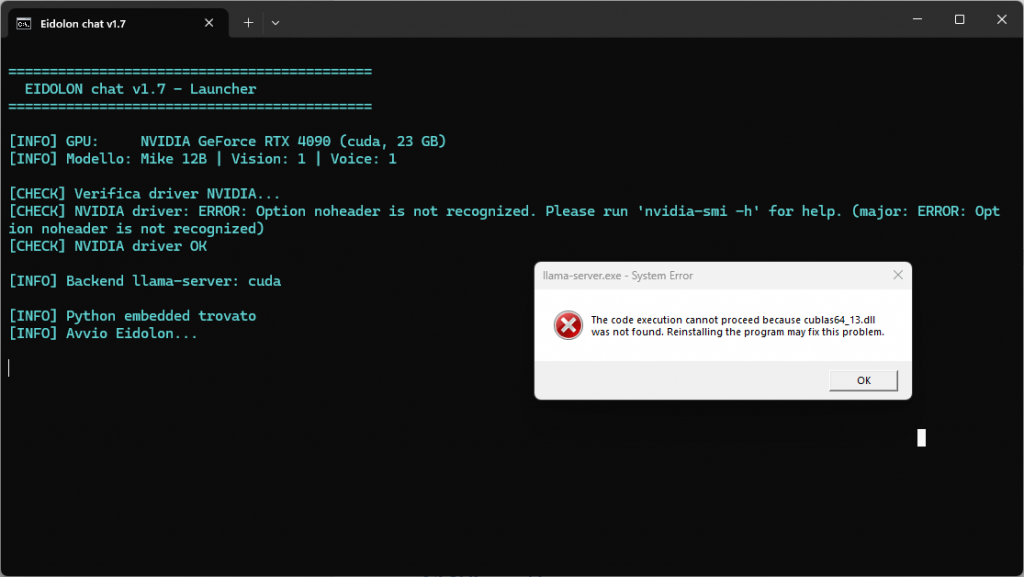
Anyone who has tried installing a local AI system on Windows has probably encountered it sooner or later: the infamous cuBLAS error.
It appears out of nowhere, usually accompanied by missing DLLs, mysterious crashes, or cryptic messages that sound like they were written by a stressed Soviet toaster. And yet, in most cases, the problem is not the AI model itself. It is not even the software. The real culprit is usually CUDA, NVIDIA drivers, or broken library dependencies.
Since half the internet now sells the idea of “running local AI in five minutes” as if it were installing a desktop wallpaper from 2004, it is probably worth explaining what is actually happening.
What Is cuBLAS?
CUDA includes a library called cuBLAS.
The name stands for:
CUDA Basic Linear Algebra Subprograms
In practice, it is a collection of highly optimized mathematical functions used constantly by AI models for matrix multiplication, tensor operations, and neural inference.
Translated into human language:
- without cuBLAS, many NVIDIA AI models will not start;
- or they fall back to CPU mode;
- or they explode with cryptic errors worthy of an ancient summoning ritual.
The Most Common Error Messages
Users often encounter messages like: “cublas64_12.dll missing” or “Failed to load cublas” or the classic “CUDA error 999″ and the always delightful: The procedure entry point could not be located…
Why Does This Happen?
1. CUDA Toolkit Is Missing
Many Windows AI applications expect the correct CUDA Toolkit version to already be installed.
For example:
- some require CUDA 12.4;
- others require CUDA 12.8;
- some only work with very specific builds.
If CUDA is missing, the required DLLs cannot be found.
2. NVIDIA Drivers Are Too Old
Even if CUDA is installed, the GPU drivers must support it.
Typical scenario:
- you install CUDA 12.8;
- your drivers are from 2023;
- Windows stares at the software like a confused dog facing algebra homework.
Result: crash.
3. DLL Files Are in the Wrong Place
Windows has a special talent for turning the filesystem into a treasure hunt.
Sometimes:
- the DLLs are installed correctly;
- but they are not inside the proper PATH;
- or older versions are found before the new ones.
This creates absurd conflicts.
4. Multiple CUDA Versions Installed Together
A very common situation.
You end up with:
- CUDA 11,
- CUDA 12.2,
- CUDA 12.8,
- leftovers from previous installations,
- applications loading different DLL versions simultaneously.
At that point, the PC becomes less of a computer and more of a séance.
5. “Smart” Antivirus Software
Some antivirus suites:
- block
.dllfiles; - quarantine
.batlaunchers; - prevent GPU libraries from loading properly.
Bitdefender in particular has created legendary moments of technical suffering for local AI users.
How to Actually Fix the Problem
1. Check NVIDIA Drivers
Open a terminal and type nvidia-smi;
If the command fails:
- drivers are not installed correctly;
- or the GPU is not being detected.
2. Install the Correct CUDA Version
Always check:
- software documentation,
- release notes,
- model requirements.
There is no such thing as a “universal CUDA version.”
And it is always fascinating watching people install CUDA 11 for software compiled against CUDA 12, then blame AI for being unstable. The digital equivalent of filling a Ferrari with diesel fuel.
3. Reboot the System
It sounds trivial.
It is not.
Windows often refuses to properly refresh:
- PATH variables,
- GPU services,
- shared libraries,
until the system is restarted.
4. Verify Environment Variables
The correct CUDA directories must exist inside the system PATH.
Typically: C:\Program Files\NVIDIA GPU Computing Toolkit\CUDA\v12.x\bin
5. Avoid Unnecessary Multiple CUDA Installations
Whenever possible:
- keep a single primary CUDA installation;
- or use AI software bundles that already include the required libraries.
Many modern AI launchers are finally moving toward self-contained environments specifically to avoid this dependency nightmare.
The Real Problem: Local AI Is Still a Young Ecosystem
The truth is that local AI today resembles PC gaming on Windows during the early 2000s:
- fragile dependencies,
- incompatible versions,
- unstable drivers,
- documentation written as if every user were a CUDA engineer at NASA.
People enter the local AI world expecting:
“I download the model and it works.”
Then they encounter: cublas64_12.dll missing
The Good News
Once CUDA is configured properly:
- most problems disappear;
- models become stable;
- performance improves dramatically.
And this is exactly why many AI ecosystems are now trying to automate:
- hardware detection,
- dependency installation,
- CUDA/Vulkan backend selection,
- DLL management.
Because most users simply want to talk to an AI.
Not become archaeologists of NVIDIA libraries.